# 🇬🇧 Omegon Pro Electronic Filter Wheel EFW

# Instructions as PDF

[![image.png](https://manuals.nimax.de/uploads/images/gallery/2026-03/scaled-1680-/image.png)](https://manuals.nimax.de/uploads/images/gallery/2026-03/image.png)
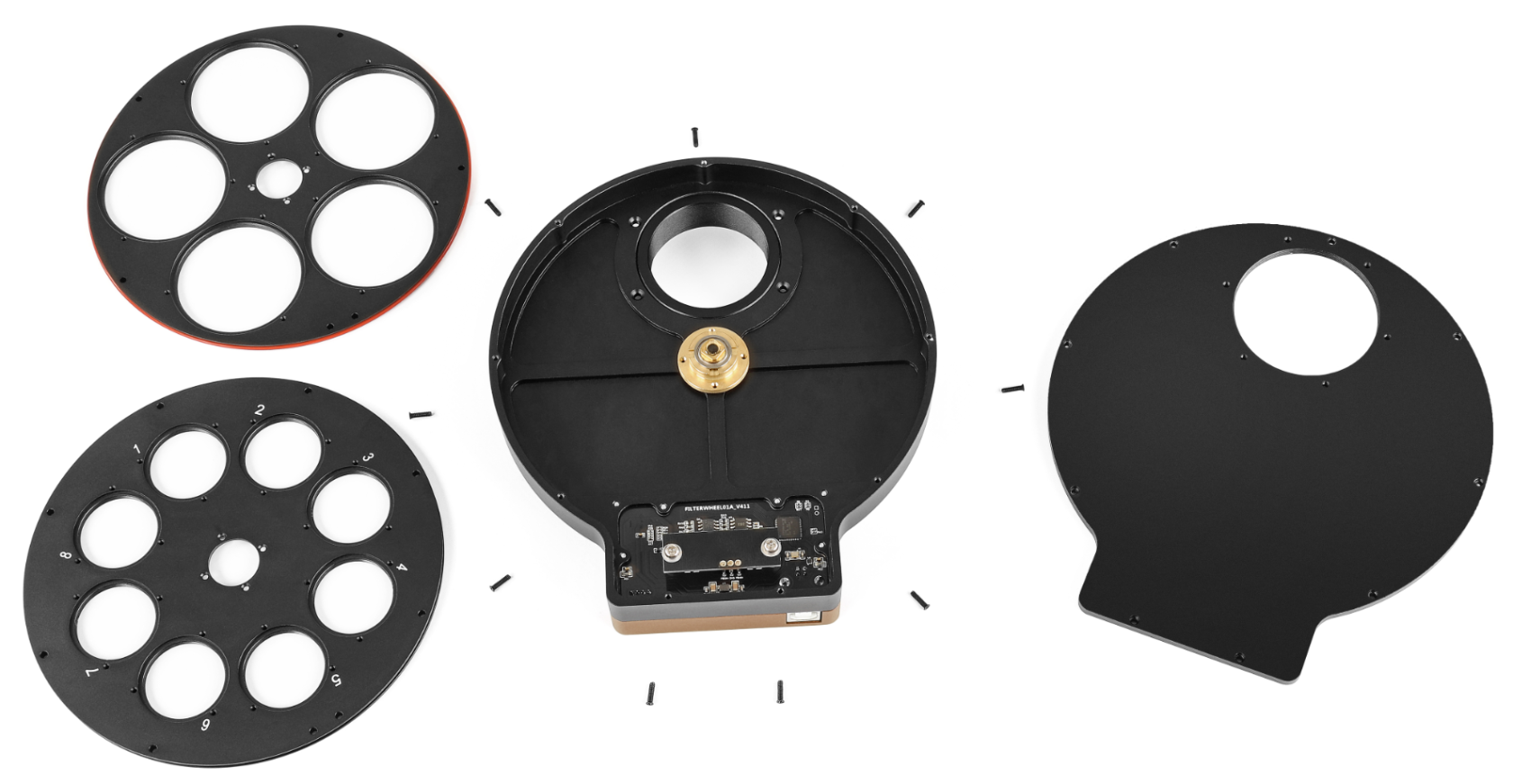
The user manual for the Omegon Pro electronic filter wheel is available as a PDF download under "Attachments". On large screens, the file is linked in the upper left corner. On smaller screens, you will find the link at the bottom of the left sidebar. On a smartphone screen, tap "Info" in the upper left corner and then scroll down.

# Firmware update

In some cases, a firmware upgrade helps to fix problems with the filter wheel.

<p class="callout success">If your filter wheel is working perfectly, please keep the current firmware.</p>

<p class="callout info">For the upgrade you will need your filter wheel, the USB connection cable and a computer with a Windows operating system.</p>

The necessary files are available for download under "Attachments". On large screens, they are linked in the upper left corner. On smaller screens, you will find the links in the lower left sidebar:

- Firmware upgrade tool "[updatefw.exe](https://manuals.nimax.de/attachments/5)",
- Upgrade tutorial video "[update\_do\_as\_follows.mp4](https://manuals.nimax.de/attachments/6)",
- and the latest version of the filter wheel firmware - the files ending in \*.iic.

### Which IIC file?

You only need one of the \*.iic files. To find it, unscrew the filter wheel cover and check the markings on the circuit board.

<details id="bkmrk-fw01a_cona_v201-%E2%86%92-fi"><summary>FW01A\_CONA\_V201 → FILTERWHEEL01A\_V202\_20250903.iic</summary>

[This Firmware-Version](https://manuals.nimax.de/attachments/4)<span style="white-space: pre-wrap;"> applies to: Printed circuit board FW01A\_CONA\_V201. An automatic reset function upon power-up has been added at the customer's request.</span>

</details><details id="bkmrk-filterwheel01a_v411-"><summary>FILTERWHEEL01A\_V411 → FILTERWHEEL01A\_V202\_20250414.iic</summary>

[This Firmware-Version](https://manuals.nimax.de/attachments/3)<span style="white-space: pre-wrap;"> applies to products with a filter wheel and integrated LED board purchased after 2024 and whose PCB version is FILTERWHEEL01A\_V411. (If you look at the filter wheel from above after removing the cover, you will see that it is partially obscured by a small circuit board.)</span>

This update resolves an issue that may have occurred in the previous version where the wheel would spin continuously under certain conditions. The problem is that the LED does not turn off after switching the filter wheel (to slots other than slot 1), which can cause light to leak into the main camera.

If the filter wheel spins continuously after installing the above version, please check if your filter wheel has a hardware version without the small circuit board. If necessary, you will need to flash the latest firmware for older hardware versions.

</details><details id="bkmrk-filterwheel01a_v410-"><summary>FILTERWHEEL01A\_V410 → FILTERWHEEL01A\_V1.3.3.20231017.iic</summary>

[This Firmware-Version](https://manuals.nimax.de/attachments/2)<span style="white-space: pre-wrap;"> is suitable for filter wheels without an LED board that were purchased before 2024 and whose board version is FILTERWHEEL01A\_V410. With this version, the entire board is visible after removing the filter wheel cover.</span>

This update resolves issues such as anomalies when switching the wheel holes in earlier firmware versions, especially beta versions.

</details>### Update Procedure

1. <span style="white-space: pre-wrap;">When flashing the firmware, the computer </span>**must not**<span style="white-space: pre-wrap;"> be connected to any other astronomy equipment.</span>
2. <span style="white-space: pre-wrap;">Do </span>**not connect any other**<span style="white-space: pre-wrap;"> astronomy equipment to the PC during the upgrade.</span>
3. <span style="white-space: pre-wrap;">Connect the filter wheel </span>**directly**<span style="white-space: pre-wrap;"> to the computer (do not use a USB hub!).</span>
4. <span style="white-space: pre-wrap;">Right-click on updatefw.exe and run the program with </span>**administrator privileges**.
5. You may need to accept warning messages (see screenshots below).
6. <span style="white-space: pre-wrap;">Follow the video tutorial for the upgrade and </span>**avoid power interruptions**<span style="white-space: pre-wrap;"> during the process. (Do not touch the USB cable.)</span>
7. After switching on, the filter wheel will automatically calibrate and rotate to its starting position (filter position 1). Do not perform firmware upgrades while the filter wheel is in operation, as this may result in an upgrade error and render the device unusable. In this case, the device must be returned to the manufacturer for repair!

[![Screenshot1Administrator.png](https://manuals.nimax.de/uploads/images/gallery/2026-03/scaled-1680-/screenshot1administrator.png)](https://manuals.nimax.de/uploads/images/gallery/2026-03/screenshot1administrator.png)

[![Screenshot2MoreInfo.png](https://manuals.nimax.de/uploads/images/gallery/2026-03/scaled-1680-/zO1screenshot2moreinfo.png)](https://manuals.nimax.de/uploads/images/gallery/2026-03/zO1screenshot2moreinfo.png)

[![Screenshot3Run.png](https://manuals.nimax.de/uploads/images/gallery/2026-03/scaled-1680-/screenshot3run.png)](https://manuals.nimax.de/uploads/images/gallery/2026-03/screenshot3run.png)

[![Screenshot5UpdateUSB.png](https://manuals.nimax.de/uploads/images/gallery/2026-03/scaled-1680-/screenshot5updateusb.png)](https://manuals.nimax.de/uploads/images/gallery/2026-03/screenshot5updateusb.png)

[![Screenshot6UpdateCompleted.png](https://manuals.nimax.de/uploads/images/gallery/2026-03/scaled-1680-/screenshot6updatecompleted.png)](https://manuals.nimax.de/uploads/images/gallery/2026-03/screenshot6updatecompleted.png)

<span style="white-space: pre-wrap;">If the firmware upgrade does not resolve your issue, please visit our official website, download the driver, and try updating to the latest version. Download link: </span>[https://www.omegon.eu/Produktdownloads/67338\_8\_ASCOMCameraDriver.exe](https://www.omegon.eu/Produktdownloads/67338_8_ASCOMCameraDriver.exe)<span style="white-space: pre-wrap;"> </span>

If the problem persists, please contact us by email (service@omegon.eu).